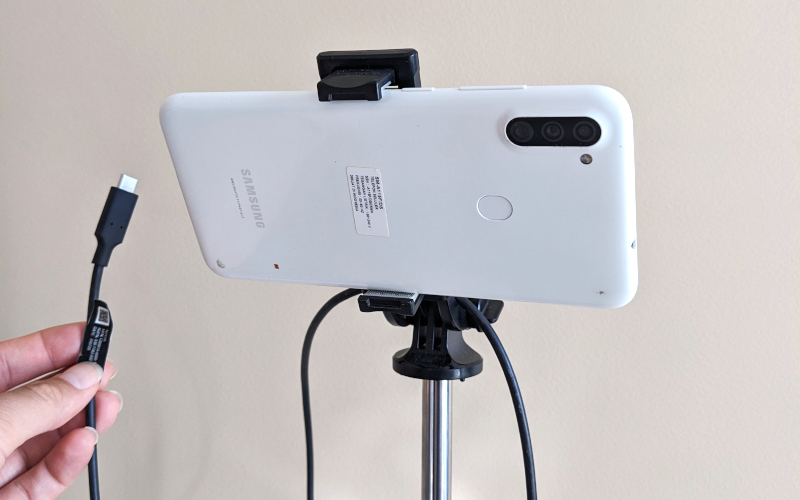
A battery-powered CCTV camera can be useful in many situations. Maybe you want to keep an eye on a room for a few hours without running a cable across it. Maybe you need a temporary camera while traveling, or you want to place one somewhere that does not have a convenient power outlet. A spare Android phone can work surprisingly well for this purpose.
There is one obvious limitation, though: battery life. A phone was not designed to record and process video continuously for days. Still, with the right settings and a little preparation, you can turn an Android device running LineCast into a portable CCTV camera that works for a useful amount of time without being connected to a charger.
The main idea is simple: make the phone do only as much work as you actually need. The less often it captures, processes, and streams video, the longer the battery will last.
Video capture and processing are power-hungry. We typically recommend that our users connect the charger to the camera device. However, LineCast can operate on battery power and is actually designed to do so, even though stable operation may require some additional preparation to get the best experience. In particular,
LineCast automatically optimizes power usage based on your selected configuration to help maximize battery life.
Let’s dig into details.
Prerequisites
-
An Android phone you will use as the camera. A tablet can be used too. Install the LineCast app and charge it fully.
- To make the camera work for an extended period of time, consider uninstalling heavy apps running in the background, such as messengers.
- If you want it to record videos, you may need enough free storage space (at least a few gigabytes).
- Ideally, you would use a “clean” device with nothing else installed. If you have an old phone collecting dust in a drawer and its battery is still in reasonably good condition, factory-reset it, install the app, and you have pretty much the ideal setup.
-
Internet connection: make sure your camera device has one, at least during the setup phase. Whether you will actually need it or not depends on how you want to use your camera.
- If you want to connect to it remotely and watch the live stream or recordings online, then you will need a stable internet connection.
- If you want to receive motion detection alerts, an internet connection is also required.
- If you plan to leave your camera for a while to capture what is happening while you are out, you can then inspect the recorded videos directly in the app.
Setup
After installing and launching the app, you will have to choose what exactly you want to capture. There is no “right” or “wrong” choice here, but since the goal is to get a battery-powered camera running for a long time, there might be a more optimal configuration than the default one.
-
The most battery-friendly but somewhat limited choice is to disable motion-triggered video recording. If you only want to check in from time to time to see what is happening in front of the camera by connecting to it remotely, this setting is perfectly fine and will help maximize battery life. In that case, the expensive video capture process only runs when you are actually connected to the camera. Depending on the battery health and other apps installed, your camera may run for days without charging if you do not connect too often. “Too often” is hard to define: you may need to experiment and see how fast the battery drains, which you can check remotely.
-
You may want to enable motion detection alerts to get notified when the camera observes motion and connect remotely to check what caused it. Motion detection adds some additional work, so the battery will drain faster.
-
The most feature-complete, but also the most power-hungry option is to allow the camera to record videos when motion is detected. Video recording is added on top of motion detection and requires the most device power. In practice, motion detection runs all the time, but video recording is only performed when motion is detected. This makes sense: if nothing is happening, recording it on video is mostly a waste of power and storage space.
- Another factor determining battery life in this case is how much motion the camera sees. Rare events, such as a neighbor coming to your house to water your plants once a day, will have a relatively small impact on battery life.
In addition, in dark environments, you may want to use the torch (flashlight), if your camera device has one built in. Leaving the torch on all the time will drain the battery and is not ideal for battery-powered operation, but turning it on occasionally for short periods is fine.
Decide whether you need video recording or not, and check the corresponding box in Capture and control settings. If you are unsure about motion alerts or the use of the torch, you can keep these options on: they can be controlled remotely.
Finish the camera configuration: namely, choose the password and get the link for remote connection. Then install your camera device in a fixed location from which you want it to film. A few useful tips when installing the camera:
- If you do not have a tripod, or want your camera to remain discreet, simply putting it on a bookshelf should be fine.
- On the camera screen preview in the app, you can switch between the front and back cameras. Prefer the back camera, as it usually provides better video quality. Adjust the zoom if needed.
- To check what is in the field of view, consider connecting remotely from another device (your other phone or laptop) as soon as you obtain the remote connection link in the app, and open the live stream. Seeing the camera video on a separate screen can be very helpful when adjusting the camera position and angle, especially if you want to place the camera somewhere that is difficult to reach.
- When connecting to your camera from a device located close to it, for example, in the same room, mute the sound to avoid audio feedback. Otherwise, the camera microphone may pick up sound from the viewer device’s speaker, send it back again, and create an unpleasant echo or high-pitched noise. When you are away from the camera, you can turn the sound back on.
- Consider adjusting the video resolution via the remote connection: on the live stream page, hit the cog icon in the bottom-right corner, or simply double-tap on the video to open the settings dialog. Find the video mode and click “Change”. Select the “Custom” setting at the bottom for more resolution options. The default resolution is usually 640×480. A higher resolution will provide better video quality, but will drain the battery faster. A lower resolution may lead to a blurrier video with less detail, but can extend the amount of time your camera will work without charging. An optimal trade-off is a resolution setting that is just good enough to see the objects of interest clearly.
If you want to connect or receive motion alerts on a specific device, send the access link and password to that device, open the link there, type the password, and activate motion alerts.
Monitoring and Battery Life
Your battery-powered camera is now fully configured.
- Use the remote access link and password to connect to your camera and watch the live stream.
- If you enabled video recording, you can also watch and download videos recorded when the camera detected motion.
- Check the battery level in the settings dialog of the live stream, or at the top of the recordings page.
- Adjust the video resolution depending on the observed quality and the battery drain rate.
Avoid frequent connections or staying on the live stream page for a long time: this keeps video capture on and is the main battery consumer.
That is basically it. A battery-powered phone camera is not meant to replace a permanently powered CCTV system in every situation, but it can be a very practical option when portability matters. The same phone that normally sits unused in a drawer can become a temporary home monitor, a travel camera, or a simple way to watch a place where running a charging cable is inconvenient.
Regarding the resulting duration, a practical test on our side:
A low-end Samsung Galaxy A11 can stay online for around 15 hours on a single charge, while recording about 4 hours of 640×480 video triggered by motion detection, with occasional live streaming.
The exact battery life will depend on the phone, the condition of its battery, your settings, and how much activity the camera sees. There is no single configuration that will be best for everyone. Start with the lightest setup that does what you need, watch the battery level, and adjust from there.
In short, if you want the longest possible runtime, keep recording disabled, connect only when needed, use motion detection only if it is useful to you, and choose a video resolution that is high enough for the job without being unnecessarily demanding. A bit of experimentation can make a large difference.